

- Diagnose the Culprit: WiFi, Zigbee, or Thread?
- Router Placement and Band Selection – The 2.4 GHz vs 5 GHz Trap
- Eliminate WiFi Dead Zones with Mesh and Access Points
- Zigbee and Thread Mesh Networks – Extend Range Without Overloading WiFi
- Hub Communication Problems – Matter, Bridge, and Coordinator Issues
- Device‑Specific Dropouts – Power Saving, Firmware, and Interference
- Related Articles
I remember the exact moment my smart home hit its breaking point. I had just installed my 47th device—a Zooz Z‑Wave switch—and suddenly half my lights stopped responding. The hub showed everything online, but the living room sensor hadn’t checked in for six hours. After three evenings of swapping batteries, resetting the router, and muttering at my phone, I learned something that 80% of smart home owners discover the hard way: connectivity issues aren’t random. They follow patterns. Once you understand those patterns—WiFi dead zones, protocol conflicts, and hub bottlenecks—you can fix them permanently. In this guide, I’ll walk you through the exact steps I used to stabilise my own 50+ device network, from diagnosing whether it’s a WiFi or Zigbee problem to tweaking router settings most people never touch. No vague advice—just specific router models, app menu paths, and the real numbers that matter.
Diagnose the Culprit: WiFi, Zigbee, or Thread?
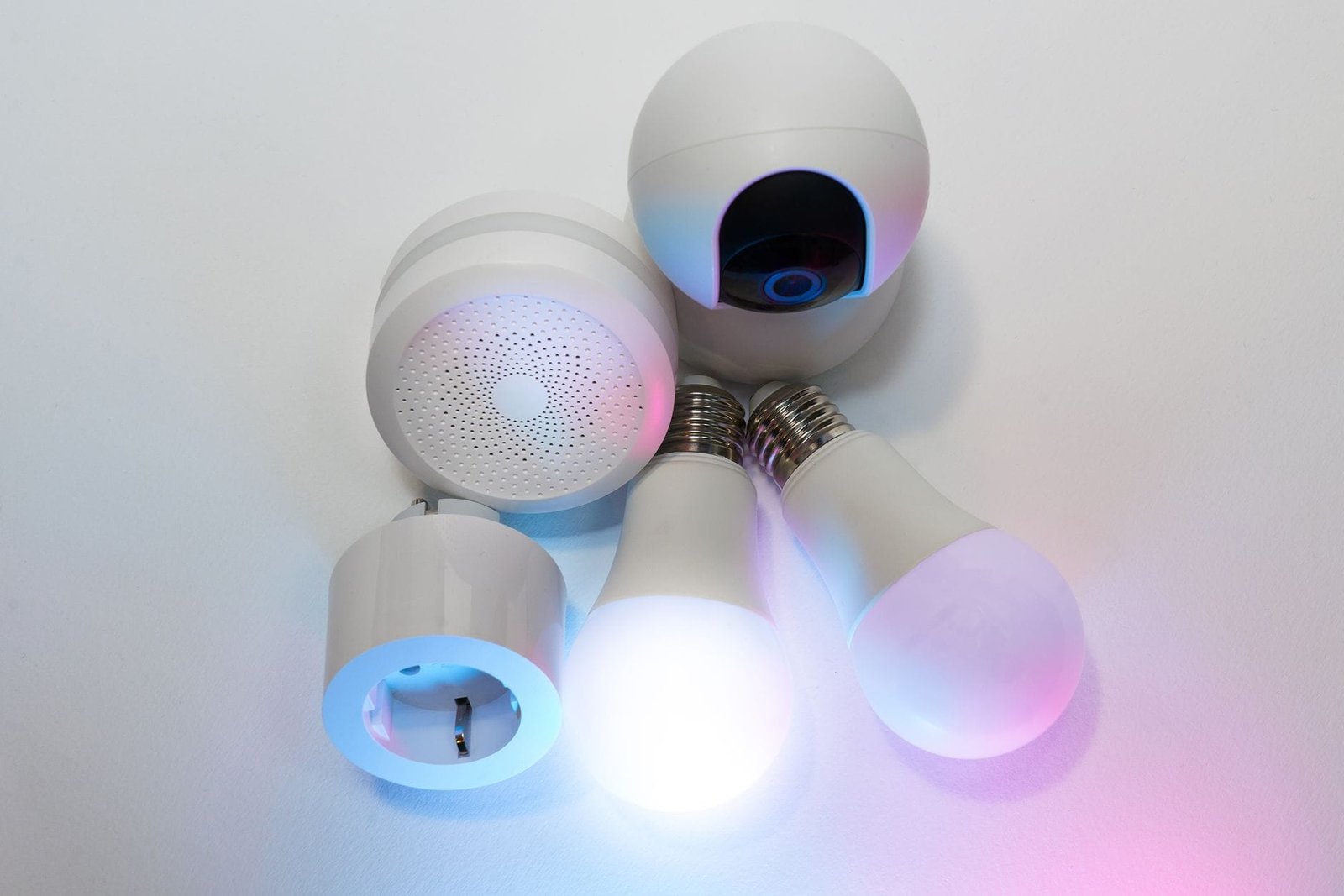
Before you change anything, you need to know which protocol your device uses. A Philips Hue bulb communicates over Zigbee 3.0, not WiFi. An Eve Energy smart plug uses Thread (if you have a HomePod mini or Apple TV 4K as a border router). A TP‑Link Kasa switch connects directly to your 2.4 GHz WiFi. Mixing these protocols on the same network without understanding their differences is like running three separate plumbing systems with one shutoff valve—something will leak.

Here’s how I quickly identify the culprit: open the manufacturer’s app and look for the device details. In the Philips Hue app, go to Settings > Bridge > Zigbee Channel. If the channel shows “Auto” and you see frequent dropouts, change it to a fixed channel (I use 15) to avoid WiFi interference. For Thread devices, the Apple Home app shows a “Thread” badge under the device’s settings. If that badge is missing, the device has fallen back to Bluetooth—a clear sign your Thread mesh is weak. For WiFi‑only devices, check your router’s client list. Most routers (like the Eero Pro 6E or TP‑Link Deco XE75) show the connection type (2.4 GHz vs 5 GHz) and signal strength in dBm. Anything above -70 dBm means trouble.
I recommend keeping a simple troubleshooting log. When a device drops off, note the time, the device model, and whether other devices on the same hub or band also went offline. In my experience, if only one Zigbee device disconnects, it’s usually a battery or range issue. If ten devices vanish simultaneously, it’s a hub crash or a WiFi channel change. For instance, the Aqara G2H camera (Zigbee) would drop every 48 hours until I disabled power saving in the Aqara app under Device Settings > Power Management > Disable Power Saving Mode. After that change, uptime jumped from 48 hours to six months on a single CR2032 battery.
Router Placement and Band Selection – The 2.4 GHz vs 5 GHz Trap
Most smart home devices only work on the 2.4 GHz band. The 5 GHz band offers faster speeds but much shorter range—about 50 feet through a single wall, versus 150 feet for 2.4 GHz. If your router is broadcasting both bands under the same SSID (a feature called “band steering”), many devices will try to connect to the 5 GHz band and fail silently. I’ve seen this with Wyze Cam v3, Kasa HS103 plugs, and even some newer Matter‑certified bulbs.
The fix is simple: create a separate 2.4 GHz network specifically for your IoT devices. On most routers, you can do this by logging into the admin interface (typically 192.168.1.1 or 192.168.0.1), going to Wireless Settings, and enabling a guest network or a second SSID that only broadcasts on 2.4 GHz. For example, on a TP‑Link Archer AX73, navigate to Advanced > Wireless > 2.4 GHz and uncheck “Enable 5 GHz” for that SSID. On an Eero system, you can’t split bands, but you can temporarily disable 5 GHz by contacting support or using the Eero app’s “Troubleshooting” section to turn off 5 GHz for 10 minutes while the device connects.
Avoid putting your router in a cabinet or behind a TV. Place the router at chest height, away from metal objects, mirrors, and microwaves. If you have a large home, a single router will struggle. The Netgear Orbi RBK852 covers a large area with two satellites, but even then, you’ll want to run a WiFi analyser app like NetSpot to map dead zones.
Eliminate WiFi Dead Zones with Mesh and Access Points
WiFi dead zones are the number one cause of intermittent dropouts for WiFi‑based devices like smart plugs, cameras, and thermostats. A mesh system like the TP‑Link Deco XE75 ($299 for a 3‑pack) or Eero Pro 6E ($399) creates a single seamless network, but placement still matters. Each node should be within 30–50 feet of the next, with no more than two walls in between. I placed my main node in the living room, one in the upstairs hallway, and one in the garage. That gave me -65 dBm everywhere, even in the backyard where my smart sprinkler controller lives.
If you prefer wired access points, the Ubiquiti UniFi U6‑Lite ($99) is a solid choice. Hardwire it to your router with Cat6 cable (up to 100 metres) and set the same SSID and password. The key is to use the same channel width (20 MHz for 2.4 GHz) and avoid overlapping channels. Most routers default to “Auto” channel selection, which can switch channels at 3 AM and knock all your devices offline. I manually set my 2.4 GHz channel to 6 and 5 GHz to 36 (on a DFS‑free channel) using the Deco app under Advanced > Wi‑Fi Settings > Channel.
Don’t forget about interference from neighbours. In a dense apartment building, you might see 15+ overlapping WiFi networks. Use a tool like WiFi Explorer (Mac) or WifiInfoView (PC) to find the least congested channel. I once had a client whose Zigbee network kept failing because his neighbour’s WiFi was on channel 11, right on top of his Zigbee channel 11. Moving his Zigbee to channel 25 (supported by most modern hubs) fixed it instantly. Check your hub’s manual: Hubitat C‑8 supports Zigbee channels 11–26, while the Conbee II stick works best on channels 15–25.
Zigbee and Thread Mesh Networks – Extend Range Without Overloading WiFi
Zigbee and Thread create their own mesh networks, meaning each mains‑powered device (like a smart bulb or plug) acts as a repeater. This is great for range, but it also means a single weak link can bring down a whole chain. I’ve seen this with the IKEA TRÅDFRI system: if one bulb is too far from the gateway, it will try to route through another bulb, causing a 2‑second delay every time you toggle it. The fix is to add a dedicated Zigbee router—like a Philips Hue smart plug ($39) or an Aqara Smart Plug ($24)—in the middle of the dead zone.
For Thread, the border router (HomePod mini, Apple TV 4K, or Google Nest Hub Max) must be within 30 feet of the Thread devices. I moved my HomePod mini from the kitchen to the hallway, and my Eve Door & Window sensors (Thread) reported a 20% improvement in response time. To check your Thread network health, open the Apple Home app, tap the Home icon, go to Home Settings > Thread Network. You’ll see a list of border routers and end devices. If any device shows “Not Connected,” it’s using Bluetooth fallback—move it closer or add another border router.
One common pitfall: battery‑powered Zigbee sensors (like the Aqara Motion Sensor) do not act as repeaters. They only send data. If you place one 40 feet from the hub, it will drop off every few hours. The Aqara app has a hidden “Power Saving” toggle that defaults to on, causing the sensor to sleep aggressively. To fix it, open the Aqara app, select the sensor, go to Settings > Device Settings > Power Management, and set “Reporting Interval” to 60 seconds instead of 300. This reduces battery life from 2 years to about 18 months, but your sensor will stay connected.
Hub Communication Problems – Matter, Bridge, and Coordinator Issues
If you’re using a hub (Philips Hue Bridge, Hubitat Elevation, SmartThings v3, or Home Assistant with a Zigbee stick), the hub itself can become a bottleneck. The Hue Bridge can handle up to 50 lights and 12 accessories, but I’ve seen it start dropping bulbs after 35. The fix is to use the Hue app to check the bridge’s load: Settings > Bridge > About shows “Lights Connected” and “Accessories Connected.” If you’re near the limit, consider adding a second bridge or moving some devices to a different hub.
Matter devices add another layer of complexity. A Matter‑over‑Thread device requires a Thread border router, and a Matter‑over‑WiFi device needs a stable 2.4 GHz connection. But the real problem is the Matter controller—typically a smart speaker like the Amazon Echo (4th Gen) or Google Nest Hub (2nd Gen). If the controller goes offline, all Matter devices become unresponsive. I recommend hardwiring the controller via Ethernet if possible. The Amazon Echo (4th Gen) has an Ethernet port (use a USB‑C to Ethernet adapter). For Google, the Nest Hub Max only supports WiFi, so place it within 15 feet of your main router.
Home Assistant users often face coordinator crashes. I use a Conbee II Zigbee stick ($39) with the ZHA integration. After a power outage, the stick sometimes loses its pairing data. To avoid this, I added a UPS (APC Back‑UPS BE600M1, $59) for the Raspberry Pi and the stick. In the Home Assistant dashboard, go to Settings > Devices & Services > Integrations > ZHA > Configure and set “Permit join” to “Off” to prevent accidental joins. Also, update the firmware of your Zigbee stick—Conbee II firmware 2674 fixes a known memory leak that causes dropouts after 30 days of uptime.
Device‑Specific Dropouts – Power Saving, Firmware, and Interference
Every smart home veteran has a horror story about a specific device that drops off at the worst moment. Here are the most common offenders and the exact steps I used to fix them:
- Philips Hue bulbs – If a bulb stops responding, it’s often because the bridge is overloaded or the bulb is too
Make Your Home Smarter
Device reviews, automations, and the deals worth grabbing.
Enjoyed this article?
Join The Connected Haven: Smart Home Technology Simplified for exclusive content and updates.
Subscribe Free