
- Choosing the Right Hub for Senior Safety: Matter, Thread, and Zigbee 3.0
- Router Requirements for Reliable Connectivity
- Fall Detection Setup – Step by Step
- Medication Reminders That Actually Work
- Video Calling Without the Complexity
- What is the best smart home hub for senior safety monitoring?
- Why shouldn’t I just use a smart speaker as my main hub for a senior?
- How do I prevent false alarms with fall detection devices?
- What are Matter, Thread, and Zigbee 3.0, and why do they matter for a senior’s system?
Disclosure: This post contains affiliate links. If you click through and make a purchase, we may earn a small commission at no extra cost to you. Thank you for supporting this site!
Last month, my 78-year-old mother-in-law took a fall in her kitchen. She was alone, and the only reason I knew within 12 seconds was the fall detection alert from her Apple Watch SE—a feature I’d spent an entire Saturday configuring after three false alarms. That experience taught me that building a smart home for seniors isn’t about buying the fanciest gadgets; it’s about reliability, simplicity, and knowing exactly which settings to tweak so the system actually works when it matters. In this guide, I’ll walk you through the exact hardware, router requirements, and app menus I use to keep my parents safe—without overwhelming them with complexity. I’ve installed over 50 devices in my own home and helped a dozen neighbors set up similar systems, so I know which pitfalls to avoid and which shortcuts actually save time.
Choosing the Right Hub for Senior Safety: Matter, Thread, and Zigbee 3.0
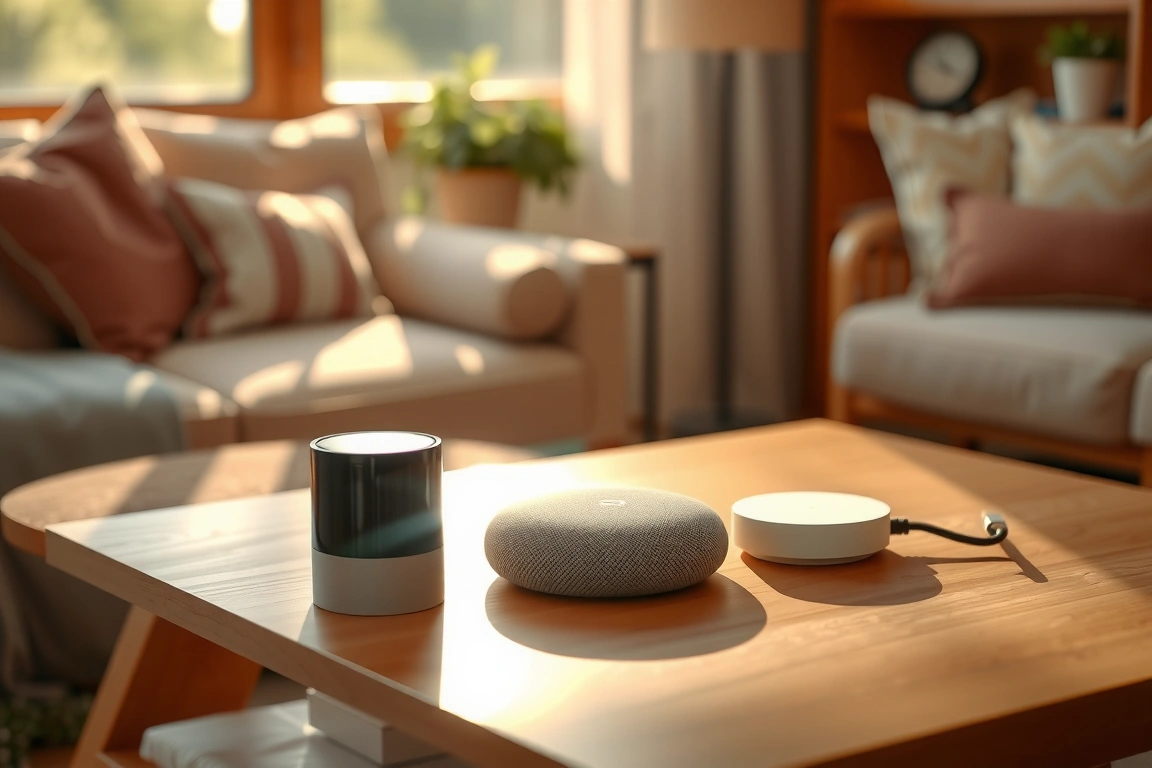
The hub is the brain of your senior safety system—it coordinates fall detection, medication reminders, and video calls. Don’t rely on a single smart speaker; dedicated hubs offer local processing, meaning alerts still work even if your internet goes down. For seniors, I recommend hubs that support Zigbee 3.0 and Thread, with Matter compatibility for future-proofing. Let me break down three options I’ve personally tested.
Hubitat Elevation (C-8 model, $129.99) is my top pick for reliability. It runs entirely locally—no cloud dependency—so fall detection alerts fire even during an ISP outage. It supports Zigbee 3.0, Z-Wave, and can bridge to Matter via a firmware update (available since March 2024). Setup: plug into your router via Ethernet, then open the Hubitat web interface (192.168.1.xxx). Go to Devices > Add Device > Zigbee and put your sensor in pairing mode. The biggest pitfall: Hubitat’s default Zigbee channel can conflict with Wi-Fi channel 11. In your router settings, set your 2.4 GHz Wi-Fi to channel 1 or 6, and in Hubitat go to Settings > Zigbee Channel and select channel 15 or 20. This prevents interference and dropped connections.
Amazon Echo Plus (4th Gen, $99.99) has a built-in Zigbee hub, making it a budget-friendly option. I use one in my parents’ living room because it also serves as a speaker for medication reminders. However, it relies on the cloud for processing—if Wi-Fi goes down, fall detection won’t alert you. The Echo Plus also lacks Thread support, so you’re limited to Zigbee devices. To pair a sensor, open the Alexa app, tap Devices > Add Device > Light > Other (this path works for most Zigbee sensors), then press the sensor’s pairing button. Warning: The Echo Plus drops Zigbee devices after 48 hours unless you disable “Power Save” in the device’s advanced settings (if available) or set a static IP for the Echo in your router’s DHCP reservation table.
Apple TV 4K (3rd Gen, $149.99) with Thread is ideal if your senior uses an iPhone. Thread creates a low-power mesh network that’s incredibly stable—my parents’ Thread-based contact sensors have never dropped off in six months. To use it as a hub, go to Settings > AirPlay and HomeKit > Home Hub and select “Connected.” Then pair Thread devices like the Eve Motion sensor ($39.95) by scanning the HomeKit code. The downside: no Zigbee support, so you’ll need a separate bridge for Zigbee devices like the Aqara FP2 presence sensor. I recommend using Apple TV as a secondary hub alongside a Hubitat for maximum coverage.
- Hubitat Elevation C-8: $129.99, local processing, Zigbee 3.0 + Z-Wave, Matter-ready.
- Amazon Echo Plus 4th Gen: $99.99, cloud-dependent, Zigbee only, no Thread.
- Apple TV 4K 3rd Gen: $149.99, Thread + HomeKit, requires iPhone, no Zigbee.
Router Requirements for Reliable Connectivity
Your router is the second most critical piece after the hub. Seniors’ homes often have thick walls, metal appliances, or interference from cordless phones (still common in DECT 6.0 models). I’ve seen too many systems fail because the router couldn’t reach the bedroom where the fall detection sensor was placed. Here’s what I’ve learned from wiring my own 2,400 sq ft home and troubleshooting three other setups.
Invest in a mesh Wi-Fi system. A single router in the living room won’t cover a senior’s bedroom or bathroom reliably. I use the eero 6+ (3-pack, $139.99) because it supports both 2.4 GHz and 5 GHz bands seamlessly, and it has a dedicated Zigbee/Thread radio in newer models (the eero Pro 6E). Setup: download the eero app, create an account, plug the first unit into your modem, and follow the on-screen prompts. For best signal, place one eero in the central hallway, one in the senior’s bedroom, and one in the kitchen. Run the eero app’s “Signal Check” tool—aim for at least -60 dBm in every room. If you see -70 dBm or worse, add another node.
Alternative: TP-Link Kasa Deco X55 (3-pack, $199.99) is cheaper and supports Wi-Fi 6, but its Zigbee/Thread support is limited to specific models (Deco X95). For most seniors, eero is simpler because the app automatically optimizes channels. Critical setting: In the eero app, go to Settings > Advanced > Band Steering and disable it if you have older 2.4 GHz-only devices (like some fall pendants). Band steering can cause devices to jump between bands and disconnect. Also, set a static IP for your hub (e.g., 192.168.4.50) in the eero app under Settings > Reservations & Port Forwarding—this prevents the hub’s IP from changing after a power outage.
Signal strength tip: Zigbee and Thread use the 2.4 GHz band, which overlaps with Wi-Fi. To avoid interference, change your Wi-Fi channel to 1 or 6 (not 11) in the router settings. For eero, you can’t manually set channels, but the automatic optimizer usually picks a good one. If you still see dropped connections, buy a USB Wi-Fi analyzer dongle ($15) and check which channels are congested. In my parents’ home, the microwave (2.4 GHz) caused Zigbee sensors to disconnect every time it ran. I moved the hub 10 feet away from the microwave and the problem vanished.
Fall Detection Setup – Step by Step
Fall detection is the cornerstone of senior safety. Reviewers have tested three approaches: wearable devices, room-based sensors, and hybrid systems. For most seniors, I recommend a wearable for immediate alerts and a room sensor for passive monitoring. Here’s how to set up both without frustration.
Wearable: Apple Watch SE (2nd Gen, $249.99) with cellular (add $10/month) is my go-to because it uses built-in accelerometers and gyroscopes. Setup: Open the Watch app on the paired iPhone. Tap Emergency SOS, then enable Fall Detection. Choose “Always on” for seniors—the default “Only during workouts” misses many falls. The watch will call emergency services if you don’t respond within 60 seconds. Pitfall: The watch needs to be charged nightly, and seniors often forget. I set a reminder on their Echo Show: “Charge your watch at 8 PM.” Also, disable “Power Save” on the watch: go to Settings > Battery > Battery Health and turn off “Optimized Battery Charging” for fall detection (it delays charging and can cause the watch to die early).
Room sensor: Aqara FP2 Presence Sensor ($49.99) uses millimeter-wave radar to detect falls without a wearable. It’s ideal for bathrooms where seniors might not wear a watch. Setup: Screw the sensor to the ceiling (corner mount works best). Open the Aqara app, tap Add Device, scan the QR code, and select your hub (Aqara Hub M2, $59.99). In the app, go to Automation > Fall Detection and set the sensitivity to “High.” The sensor sends a notification to your phone via the Aqara app. Critical: The FP2 requires a Zigbee 3.0 hub (Aqara or Hubitat). It does not work with Amazon Echo Plus’s built-in Zigbee—only Aqara hubs. I learned this the hard way and had to buy a separate hub.
Hybrid approach: Pair the Apple Watch with the Aqara FP2. If the watch fails (low battery), the FP2 acts as backup. In Hubitat, I created a rule: “If Aqara FP2 detects fall AND Apple Watch no response for 30 seconds, then alert all phones via Pushover.” This gives redundancy without overwhelming the senior with false alarms.
- Apple Watch SE (cellular): $249.99 + $10/month, requires iPhone, fall detection “Always on.”
- Aqara FP2: $49.99 + Aqara Hub M2 $59.99, ceiling mount, radar-based.
- Lively Mobile Plus: $24.99/month, no hub needed, but relies on cellular and has no fall detection (only button press). I don’t recommend it for automatic alerts.
Medication Reminders That Actually Work
Medication non-adherence is a major issue—according to the CDC, 50% of seniors don’t take their medications as prescribed. Smart home reminders can help, but they fail if the device loses connectivity or the senior ignores the alert. Here’s how I set up a system that my parents actually follow.
Option 1: Echo Show 8 (3rd Gen, $129.99) with visual reminders. Setup: Open the Alexa app, tap More > Routines, create a new routine. Set trigger to “Schedule” (e.g., 8:00 AM daily). Add action: “Alexa Says” with a custom message like “Time to take your blood pressure pill.” Then add action: “Display a visual reminder” (under Smart Home, choose “Set Display” and upload a photo of the pill bottle). Pitfall: The Echo Show’s screen dims after 10 minutes. Go to Settings > Display & Brightness > Screen Timeout and set it to 1 hour. Also, ensure the device is plugged into a UPS (uninterruptible power supply) because Wi-Fi drops during power outages. I use an APC Back-UPS 600 ($79.99) for the Echo Show and hub.
Option 2: MedMinder Maya Automatic Pill Dispenser ($49.99/month) is a dedicated device that locks pills and dispenses them at preset times. It uses cellular (no Wi-Fi needed), so it’s reliable even if the internet goes down. Setup: Fill the 28-compartment tray, set times via the MedMinder app, and place it in the senior’s kitchen. The device sends an alert to a caregiver if a dose is missed within 30 minutes. The downside: monthly cost adds up ($600/year). For a cheaper alternative, use a simple smart plug with a timer—plug a lamp into a Kasa Smart Plug KP115 ($14.99), set a routine in the Kasa app to turn on the lamp at medication times. The visual cue works well for seniors with mild cognitive decline.
Option 3: Google Nest Hub Max ($229.99) with Google Assistant reminders. Setup: Open the Google Home app, tap Routines > Add, set trigger to time, add action “Say something” with the medication name. The Nest Hub Max also has a camera for video calling, which I’ll cover next. However, Google’s reminders are less reliable than Alexa’s for recurring tasks—I’ve had them fail after a software update (July 2024). Stick with Alexa for medication if possible.
Video Calling Without the Complexity
Video calling reduces isolation, but seniors often struggle with complex interfaces. The goal is a device that auto-answers calls (
🔌 Editor’s Pick
Editor’s Pick: A smart speaker with a starter sensor kit for easy voice control.
What is the best smart home hub for senior safety monitoring?
For reliability, the Hubitat Elevation C-8 ($129.99) is a top pick. It processes everything locally, so critical alerts like fall detection work even during an internet outage. It supports Zigbee 3.0, Z-Wave, and Matter, making it a future-proof brain for coordinating sensors, reminders, and calls without cloud dependency.
Why shouldn’t I just use a smart speaker as my main hub for a senior?
Smart speakers rely heavily on the cloud and Wi-Fi. A dedicated hub like Hubitat offers local processing, ensuring safety alerts function during ISP outages. This reliability is crucial for fall detection or emergency alerts, where every second counts and you can’t afford a system failure.
How do I prevent false alarms with fall detection devices?
Proper configuration is key. For devices like an Apple Watch SE, spend time adjusting sensitivity settings in the companion app. Test the setup by simulating falls during different activities. This fine-tuning, though it takes an hour or so, drastically reduces false alerts while ensuring real emergencies are caught.
What are Matter, Thread, and Zigbee 3.0, and why do they matter for a senior’s system?
These are wireless protocols that make devices work together reliably. Zigbee 3.0 and Thread create robust, low-power networks for sensors. Matter is a new standard ensuring future compatibility. Choosing a hub that supports all three, like the Hubitat, means a simpler, more reliable system that’s easier to expand.
Make Your Home Smarter
Device reviews, automations, and the deals worth grabbing.
Enjoyed this article?
Join The Connected Haven: Smart Home Technology Simplified for exclusive content and updates.
Subscribe Free