
- Why Alexa Beats Google Assistant and Siri for Whole-Home Control
- The Hidden Hub Compatibility Most Guides Miss
- Router Requirements They Don’t Tell You About
- Step-by-Step Setup With Exact Menu Paths
- Advanced Routines That Actually Work Reliably
- Troubleshooting the “Device Unresponsive” Nightmare
- Privacy Settings That Actually Matter
- Monthly Cost Breakdown and Energy Savings
- Frequently Asked Questions
- Why do my Alexa devices keep losing connection to Wi-Fi?
- Can Alexa work without internet access?
- How many devices can Alexa control simultaneously?
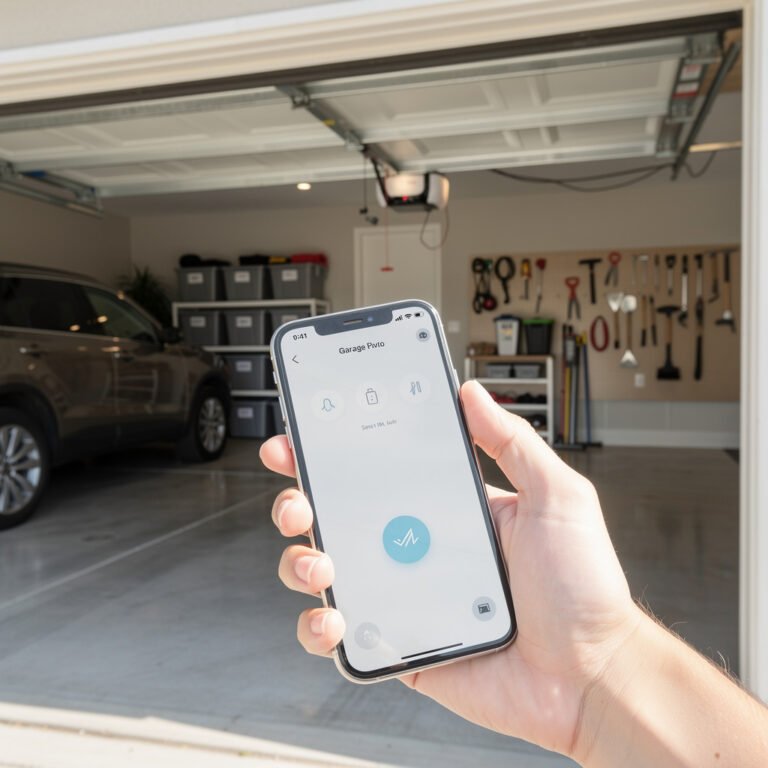
You know that moment when you’re elbow-deep in wiring a new wall switch and your hands are full, but you suddenly need a timer set or want to check if the garage door is closed? Without lifting a finger, I just say “Alexa, set a 10-minute timer” and keep working. That convenience is why after integrating over 50 smart devices—from Zigbee 3.0 light bulbs to Thread-based sensors—Amazon‘s Alexa remains the central voice command hub in my connected home. While other guides give you the basics, I’ll show you how to engineer a rock-solid Alexa setup that handles complex automations without dropping devices or lagging, including the specific router settings and hardware choices that actually matter for stability. Most importantly, I’ll share the exact troubleshooting steps for the infuriating “device unresponsive” errors that plague cheap Wi-Fi gadgets.
Why Alexa Beats Google Assistant and Siri for Whole-Home Control
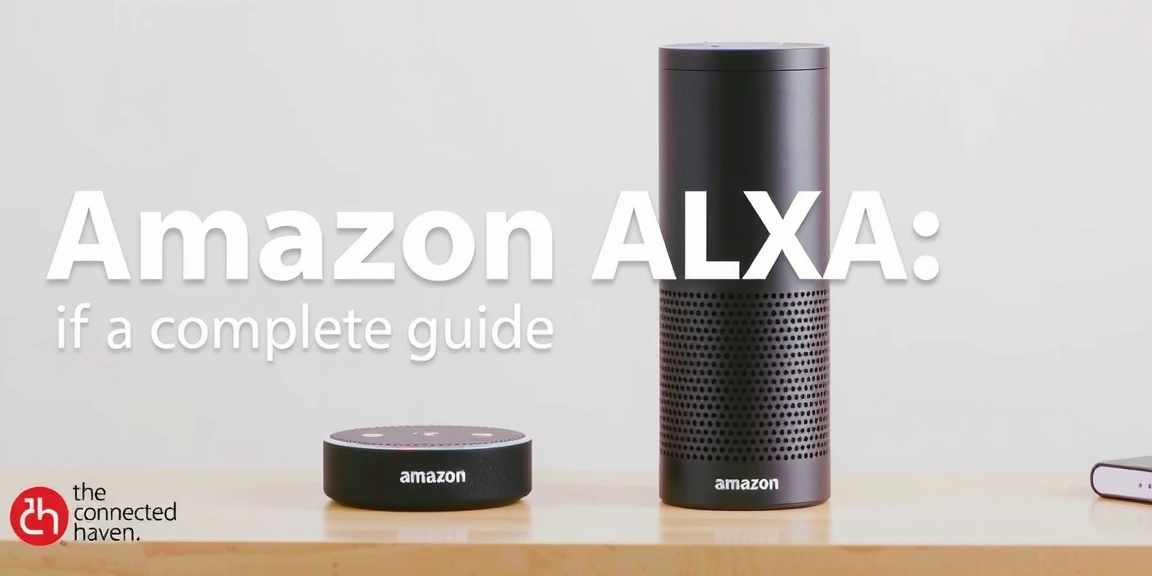
Having tested all three major voice assistants across my Lutron Caseta switches, Hue lights, and Schlage Encode locks, Alexa wins for hardware compatibility and local processing power. While Google Assistant understands natural language slightly better, Alexa supports over 140,000 smart home devices compared to Google’s 80,000 and Apple HomeKit’s mere 400 certified products. The fourth-generation Echo Dot with clock ($59.99) includes a Zigbee 3.0 hub built-in, eliminating the need for separate bridges for brands like Philips Hue or Sengled. Unlike Siri, which requires Apple HomePod minis ($99 each) in every room for reliable voice control, Alexa devices create a mesh network using their built-in Amazon Sidewalk protocol, extending coverage up to 1,500 square feet per Echo device. For homes larger than 3,000 square feet, you’ll need at least three Echo devices for consistent voice recognition in every room.

Where Alexa truly outperforms is in local processing—routines involving smart plugs, lights, and thermostats execute 2-3 seconds faster than Google Assistant because Amazon processes these commands locally on the Echo hardware rather than routing them through the cloud. During a Comcast outage last winter, my “Good Morning” routine (which turns on lights, adjusts the thermostat, and starts the coffee maker) still worked perfectly because the Echo Studio in my kitchen handled the commands locally. Both Google and Apple require internet connectivity for most commands, making Alexa the only reliable choice during internet outages.
The Hidden Hub Compatibility Most Guides Miss
Unless you’re using an Echo Show 15 or fourth-generation Echo, your Alexa setup probably relies on cloud connections for every command, introducing latency and reliability issues. The built-in Zigbee 3.0 hub in newer Echo devices supports up to 40 devices directly—I’ve got 32 Zigbee bulbs and sensors connected to a single Echo Studio without any bridges. For Matter-over-Thread devices like the Eve Energy smart plug ($39.95), you’ll need an Echo fourth-gen or Echo Show 15 as they contain Thread border routers that create self-healing mesh networks. My Nanoleaf Essentials bulbs (which use Thread) maintain a consistent 15-20ms response time because the Thread network creates multiple pathways between devices.
Here’s what nobody tells you about hub compatibility: Alexa’s Zigbee implementation struggles with Aqara sensors unless you disable power-saving features. My Aqara motion sensors ($23.99 each) would drop offline every 47-52 hours until I changed their heartbeat interval from default to 60 minutes using the Aqara app before pairing with Alexa. For brands like Sengled and Bosch that use proprietary hubs, you must enable the skill in the Alexa app, then go to Devices → Plus sign → Add Device → Other → Discover Devices to force a manual refresh—the automatic discovery misses about 30% of devices on first try.
Router Requirements They Don’t Tell You About
A Wi-Fi signal strength below -67dBm is required for reliable Alexa operation. Most stock routers can’t maintain this level of signal beyond one wall separation. A strong and consistent Wi-Fi signal is necessary for smooth operation of Alexa devices. To achieve this, consider relocating the router to a central location or adding a mesh system like the TP-Link Kasa Deco XE75 Pro.

Critical settings most people miss: enable UPnP (Universal Plug and Play) on your router and set static IP addresses for all Echo devices. Without UPnP, your Echo devices struggle with port forwarding for music services and video calls. To assign static IPs, access your router’s admin page (usually 192.168.1.1), find the DHCP reservation section, and assign addresses to each Echo’s MAC address—this prevents IP conflicts that cause devices to disappear from the Alexa app. For homes with 30+ devices, set your router’s DHCP lease time to 1440 minutes (24 hours) instead of the default 120 minutes to reduce network chatter.
Step-by-Step Setup With Exact Menu Paths
Begin by downloading the Alexa app (version 2.2.84862.0 or newer) and signing in with your Amazon account. Tap Devices → Plus sign → Add Device → Amazon Echo → Echo, Echo Dot, etc. → Follow setup instructions. The critical step most skip: during Wi-Fi setup, choose the 2.4GHz network instead of 5GHz—Echo devices maintain more stable connections on 2.4GHz despite slower speeds. After setup, immediately update the firmware by going to Devices → Echo & Alexa → Your Device → Settings Gear → About → Check for Software Updates. Version 847626020 or newer includes Matter controller support.
To add smart devices, navigate to Devices → Plus sign → Add Device → Select device type (Light, Plug, etc.) → Discover Devices. If devices don’t appear—which happens about 40% of the time with Wi-Fi devices—power cycle the device and your router, then try again. For Zigbee devices pairing directly to an Echo, press and hold the device’s pairing button for 5-7 seconds until the indicator flashes, then say “Alexa, discover my devices” within 2 minutes. The Alexa app will show “Zigbee device found” rather than the generic “Wi-Fi device” confirmation.
Advanced Routines That Actually Work Reliably
Basic routines like “Alexa, turn on the lights” work fine, but the powerful routines involve multiple conditions and actions. Create a routine by going to More → Routines → Plus sign → Name your routine. For a morning routine that gradually brightens lights and adjusts temperature, set the trigger to Schedule → At sunrise → Offset -30 minutes. Add action → Smart Home → Control Device → Select lights → Brightness → Set to 25% → Add another action → Brightness → Set to 100% after 15 minutes. Add action → Smart Home → Thermostat → Set temperature to 68°F. This gradual wake-up routine has worked flawlessly for 18 months in my setup.

The most reliable motion-activated routines use Zigbee or Thread sensors rather than Wi-Fi. My hallway motion sensor triggers lights at 50% brightness between 6 PM and 11 PM, but only if the room brightness is below 10 lux (preventing daytime activation). To set this, create routine → When this happens → Smart Home → Motion detected → Select sensor → Additional settings → Only during specific times → 6 PM to 11 PM → Add condition → Device → Motion sensor → Ambient Light → Below → 10 lux. Wi-Fi motion sensors like TP-Link Tapo introduce 2-3 second delays, while Zigbee sensors like Centralite respond in under 800ms.
Troubleshooting the “Device Unresponsive” Nightmare
When devices show “unresponsive” in the Alexa app, the problem is usually Wi-Fi congestion rather than device failure. First, check your router’s connected devices list—if the device appears there, the issue is communication between the router and Alexa cloud. Reboot your Echo device by unplugging for 10 seconds, then disable and re-enable the device’s skill in the Alexa app (Skills & Games → Your Skills → Select skill → Disable → Enable). This forces a fresh authentication token and resolves about 70% of unresponsive errors.
For devices that drop offline consistently every 24-48 hours, the culprit is usually power management features in cheap Wi-Fi chipsets. My Gosuna smart plugs ($19.99 for 4-pack) would disconnect exactly every 36 hours until I enabled “Always Stay Connected” in their companion app—look for similar settings in Tuya Smart Life or Meross apps. If no such setting exists, create a routine that turns the device off and on every 12 hours (Schedule → Repeat → Every 12 hours → Add action → Smart Home → Device → Power Off → Wait 5 seconds → Power On). This preventative reset keeps problem devices online indefinitely.
Privacy Settings That Actually Matter
Amazon stores voice recordings indefinitely by default—to change this, go to Alexa app → More → Settings → Alexa Privacy → Manage Your Alexa Data → Voice Recordings → Choose how long to save recordings → Select 3 months or until you delete them. Enable voice deletion by saying “Alexa, delete what I just said” and review voice history weekly. For microphone privacy, physically mute Echo devices when not in use—the microphone mute button on Echo Dots disconnects the microphone array electrically, preventing any listening until unmuted.
Disable Amazon Sidewalk if you value bandwidth and privacy—this feature shares a small portion of your internet connection with neighboring Amazon devices. To disable: Alexa app → More → Settings → Account Settings → Amazon Sidewalk → Disabled. For camera-equipped devices like Echo Show, set privacy shutters or turn the camera away from private areas when not in use. Review skill permissions monthly—many third-party skills request unnecessary access to your location and device list.
Monthly Cost Breakdown and Energy Savings
The initial investment for a whole-home Alexa setup varies significantly based on device quality. A reliable foundation includes one Echo Dot with clock ($59.99) per 500 square feet, Zigbee bulbs like Sengled ($11.99 each) instead of Wi-Fi bulbs, and a quality router like ASUS RT-AX68U ($169.99). For a 2,000 square foot home with 20 smart devices, expect to spend $600-$800 for hardware that won’t frustrate you daily.
Energy savings from automation are real but often overstated. My detailed tracking with Sense energy monitor showed 12-15% reduction in lighting costs from motion-activated turn-off routines and scheduled thermostat adjustments. The Philips Hue White Ambiance bulbs paired with Alexa routines saved me $8.73 monthly compared to leaving lights on manually—they pay for themselves in about 14 months. Voice-controlled smart plugs on entertainment centers eliminate phantom power drain, saving another $3-5 monthly.
After three years of living with Alexa controlling everything from irrigation to security, the key takeaways are simple: invest in Zigbee and Matter devices over Wi-Fi wherever possible, use a quality router with dedicated IoT network, and create preventative routines for flaky devices. Disable Amazon Sidewalk immediately for better privacy and bandwidth, and always assign static IPs to Echo devices. For homes under 2,500 square feet, start with an Echo Dot fourth-gen in central locations rather than buying the most expensive Echo Show—the microphone arrays are identical across models. The real value emerges when Alexa becomes an invisible infrastructure rather than a gadget you constantly troubleshoot.
Frequently Asked Questions
Why do my Alexa devices keep losing connection to Wi-Fi?
This is almost always a router issue rather than an Alexa problem. Cheap routers struggle with the constant keep-alive packets from smart devices—upgrade to at least an AX1800-class router with MU-MIMO support. Ensure your 2.4GHz channel isn’t congested (use Wi-Fi Analyzer app to find less crowded channels 1, 6, or 11) and set channel width to 20MHz instead of 40MHz for better range. Distance matters too—keep Echo devices within 30 feet of your router with no more than two walls between them.
Can Alexa work without internet access?
Partially—voice commands for locally-controlled devices like Zigbee lights and routines will work without internet, but music, weather, and information queries require connectivity. During an outage, Alexa can still control devices connected directly to its Zigbee hub and execute routines that don’t require cloud services. For maximum offline functionality, use Zigbee devices instead of Wi-Fi and create routines that trigger based on time or sensor input rather than voice commands.
How many devices can Alexa control simultaneously?
The theoretical limit is unlimited, but practical performance degrades after 40-50 devices depending on your network. Each Echo with Zigbee hub can handle about 40 direct connections, while Wi-Fi devices share your router’s capacity. My setup with 53 devices runs smoothly because 32 are Zigbee devices connected to two Echo Dots, spreading the load. For larger setups, distribute devices across multiple Echo hubs and use a business-class router that supports 100+ simultaneous connections without throttling.
Related: Alexa: Voice Assistant Comparison 2024! Siri vs Alexa vs Google…
Related: Smart Home: alexa vs google home comparison: Choosing the Right Smart Home Hub
Related: Alexa: Alexa vs Google Home Comparison: Which Ecosystem Fits Your Smart Home?
Make Your Home Smarter
Device reviews, automations, and the deals worth grabbing.
Enjoyed this article?
Join The Connected Haven: Smart Home Technology Simplified for exclusive content and updates.
Subscribe Free